
GUIs display information to the player and let them interact with buttons, text boxes, and more.
Setting Up a ScreenGui
GUIs live inside a ScreenGui object, which should be parented to the player’s PlayerGui.
In StarterGui, create a ScreenGui called MyGUI, then add a TextLabel and a TextButton.
Scripting the GUI
Put a LocalScript inside the ScreenGui (LocalScripts are used for client-side UI).
local screenGui = script.Parent
local label = screenGui:WaitForChild("TextLabel")
local button = screenGui:WaitForChild("TextButton")

label.Text = "Click the button!"
label.TextColor3 = Color3.fromRGB(255, 255, 255)
label.TextSize = 24

button.MouseButton1Click:Connect(function()
    label.Text = "You clicked it!"
    label.TextColor3 = Color3.fromRGB(0, 255, 0)
end)
Common GUI Objects
| Object | Purpose |
|---|---|
| TextLabel | Displays text |
| TextButton | Clickable button |
| ImageLabel | Shows an image |
| Frame | Container for other elements |
| TextBox | Player text input |
Styling with Properties
local frame = Instance.new("Frame") -- we create a frame with nothing set on it
frame.Size = UDim2.new(0, 300, 0, 200) -- we set the frame size
frame.Position = UDim2.new(0.5, -150, 0.5, -100) -- position offset
frame.BackgroundColor3 = Color3.fromRGB(30, 30, 30)
frame.BackgroundTransparency = 0.2
frame.BorderSizePixel = 0
frame.Parent = script.Parent -- we make the frame a child of the script
UDim2 is used to scale and position a GUI, each value is represented in pixels.
The script uses UDim2.new(XScale, XOffset, YScale, YOffset), the offset is based on the left wall of the screen and top of the screen.
The scale uses a % of the parents width/height based on Y or X components, whilst the offset is an absolute offset based on the scale
Example:
local frame = Instance.new("Frame") -- we create the instance
local X = number
local Y = number
frame.Size = UDim2.new(0, X, 0, Y)
The variable frame is our instance of the GUI, the variable X is the width whilst the variable Y is the height. We used 0 on the scale because we are using 0% of the parents size and instead we use our own by adding on, in simple terms we do this:
X = 0 + X
Y = 0 + Y
By changing the 0 into something else it would be a % of the parents size, if the parent for example was 300 pixels wide and tall and we used (50, 0, 50, 0) then the size of our new instance would be 150 by 150 but if we for example did (50, 50, 50, 50) then it would be 200 by 200 as the X and Y are adding onto the width and height of the object making it 50 pixels taller
quick warning, the code that i used to explain wont work as there is no position
Here I showed off how (0, 300, 0, 300) looks like in the first image, I also showed off (50, 0, 50, 0) in the second one
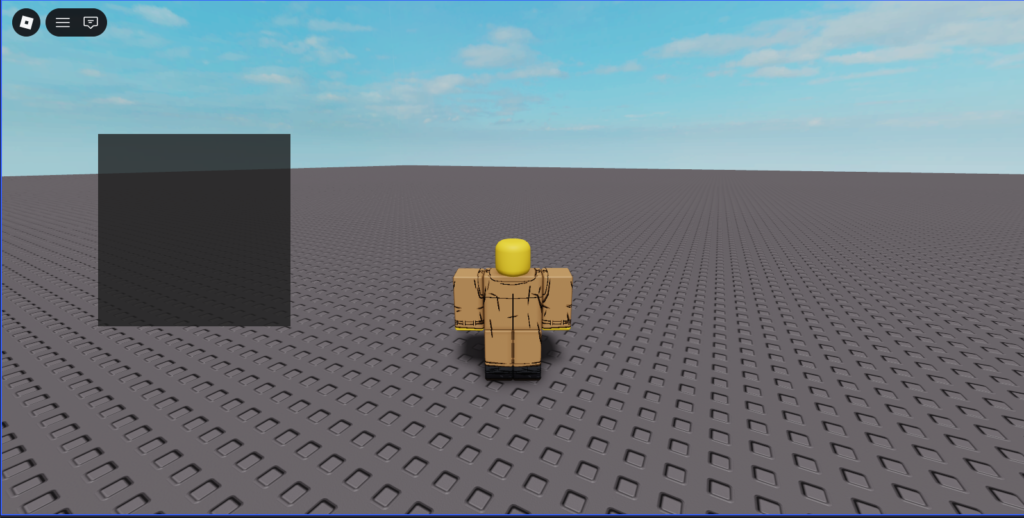
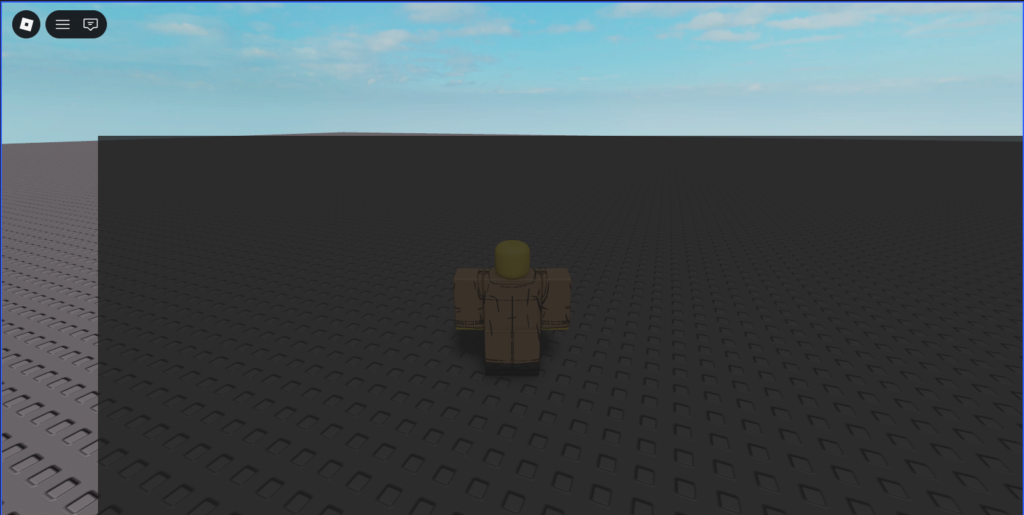
The GUI in the second image looks like that because (0, 50, 0, 50) Effectively makes the 50% of the entire screen but because i positioned it at (0, 150, 0, 150) or also explained as 150 pixels right 150 pixels down
Updating UI from Server to Client
Use RemoteEvent to pass data from server scripts to LocalScripts.
In ReplicatedStorage:
-- Server Script (ServerScriptService)
local remote = ReplicatedStorage:WaitForChild("UpdateLeaderboard")

game:GetService("Players").PlayerAdded:Connect(function(player)
    local leaderstats = Instance.new("Folder")
    leaderstats.Name = "leaderstats"
    leaderstats.Parent = player

    local coins = Instance.new("IntValue")
    coins.Name = "Coins"
    coins.Value = 0
    coins.Parent = leaderstats
end)
If you want you could replace the “leaderstats” folder to be made beforehand as using it for each thing would make multiple of them, instead you could make one in ReplicatedStorage and make all the values be inside it at the start, then move it to the player using code, this would work better but also is a bit more complicated so using the one shown above is still good
-- LocalScript inside the GUI
local remote = ReplicatedStorage:WaitForChild("UpdateLeaderboard")

remote.OnClientEvent:Connect(function(data)
    script.Parent.CoinsLabel.Text = "Coins: " .. data.coins
end)
Complete Example: Health Display
Create a TextLabel in StarterGUI and use this LocalScript:
local player = game.Players.LocalPlayer
local healthLabel = script.Parent.HealthLabel

player.CharacterAdded:Connect(function(character)
    local humanoid = character:WaitForChild("Humanoid")

    local function updateHealth()
        healthLabel.Text = "Health: " .. math.floor(humanoid.Health)
    end

    humanoid:GetPropertyChangedSignal("Health"):Connect(updateHealth)
    updateHealth()
end)
This keeps the health label updated in real-time.
The “player.CharacterAdded” checks for when the players character is added, as the name suggests. humanoid:GetPropertyChangedSignal(“Health”) looks for when the players health changes then calls on the function to update the health.
updateHealth() is the function called, it changes the variable that changes the HealthLablel text to itself, the function changes it to “Health: ” . . we used . . as the server takes it in as
“Hey server, I need you to change this thing to be Health: and then insert the humanoids health”